
. You can use a Google Spreadsheet App to track the screenshots andtracker information. You can use it to track Amazon prices, https://blit.freshdesk.com/support/solutions/articles/22000275948-amazon-trackersGoogle SearchRank, Amazon Category Rank, YouTube view counts, and more.
Note that this differs from using a Google Spreadsheet as the sourcefor the capture.
Use column headers to track the information available with the Blitapp capture. You can include any of these columns in any order:
If you include any tracker, make sure the column header matches the tracker's name exactly. You can always ask us to create more trackers for specific pages.
Here is a simple Google spreadsheet we'll use as an example:
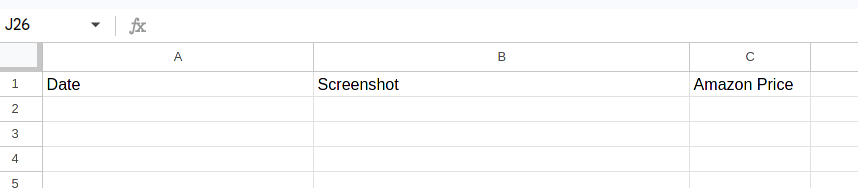
Amazon Price is the exact name of the Tracker set for the corresponding capture.
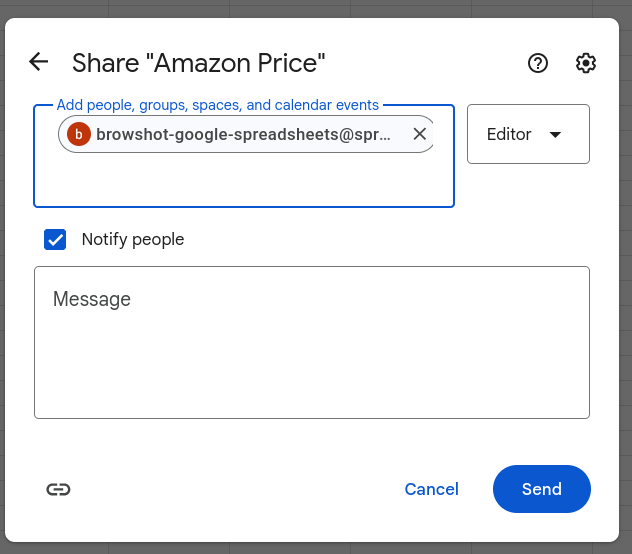
To give access to the spreadsheet to Blitapp, you must share it with the e-mail browshot-google-spreadsheets@spreadsheet-302000.iam.gserviceaccount.com with Editor access.
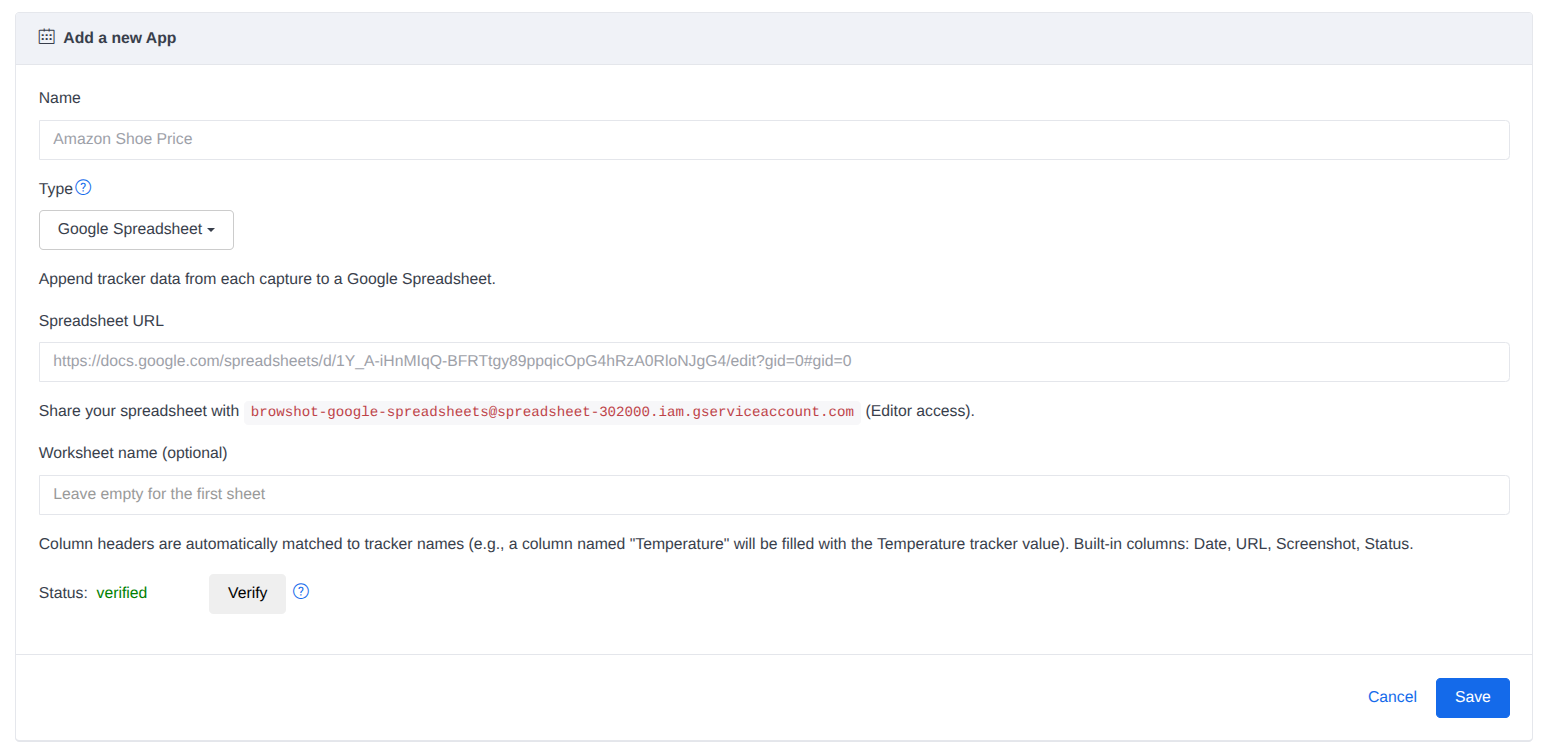
Create a new App:
Click on Verify to ensure Blitapp has write access.
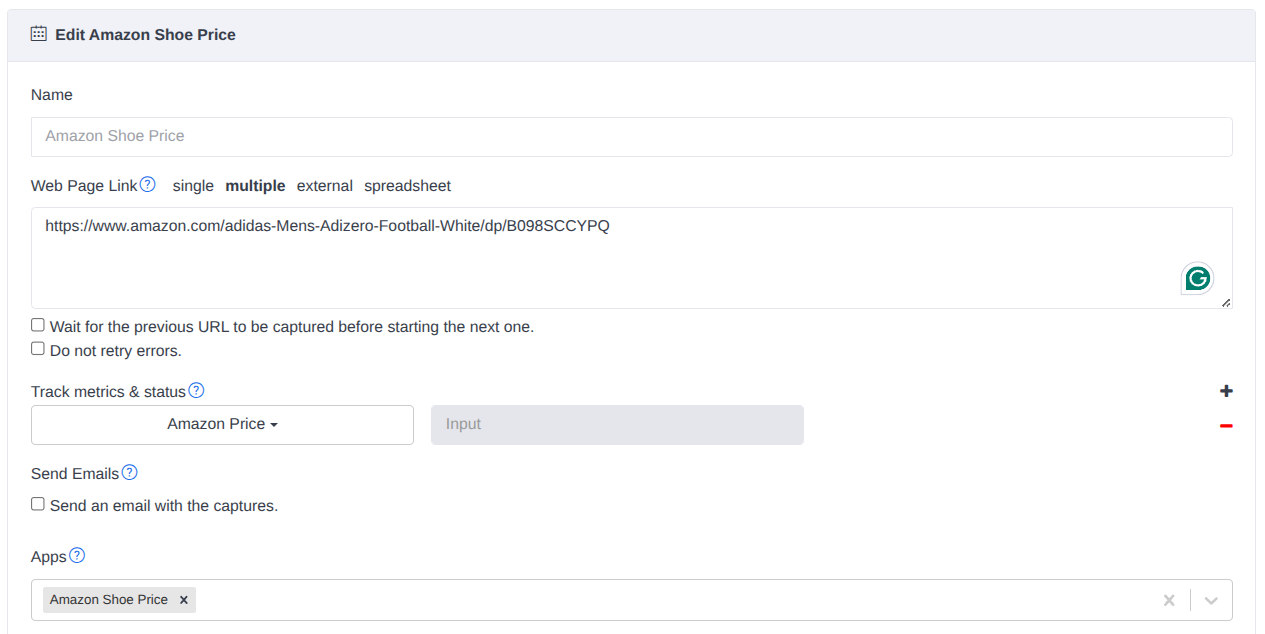
Create a new capture in Blitapp. Enter the URL of the page(s) to capture. Add the trackers for this page. Add the Google Spreadsheet App you created.
Click on Save & Testto run the capture immediately. You will see the tracker information in the history:
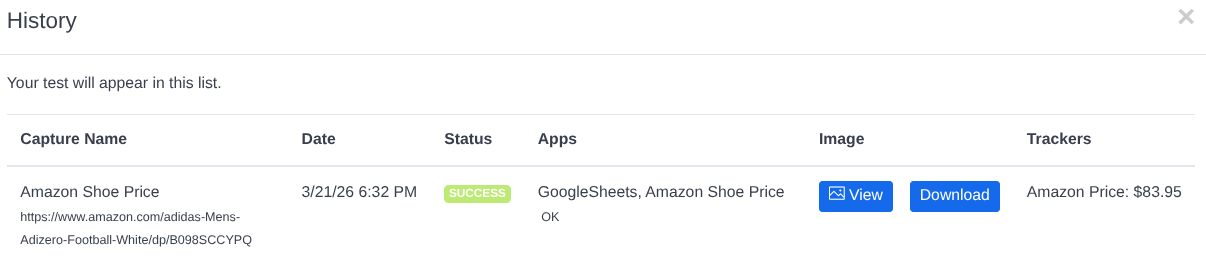
The spreadsheet has been updated with the page information:
