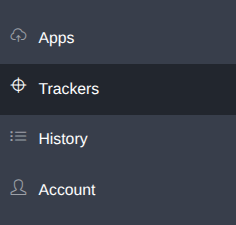
Click on the Trackers section in the left menu.
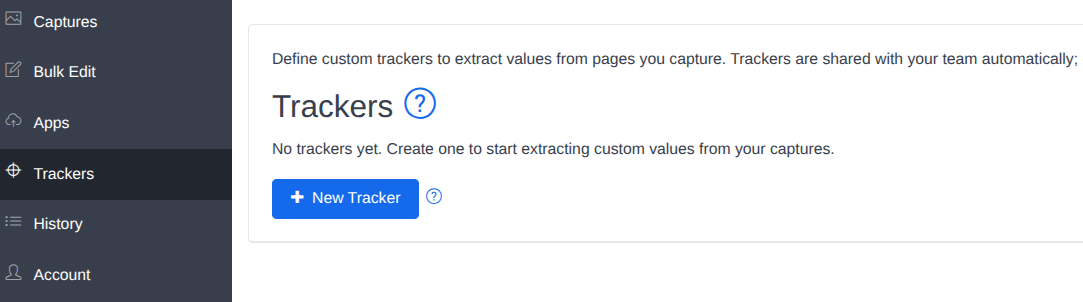
Click on the Add new tracker button to add a new tracker.
Create or Edit a tracker
This brings up a new form to create your tracker:
- Name: a unique name shown in the tracker results
- Display name: the name of the tracker that you will later select inside your captures
- Description: a description of the tracker
- CSS selector: an option CSS selector to wait for. If this CSS selector is not found, the tracker is not run on the page.
- Value expression: JavaScript code that runs on the page to return the tracker value
- Value type: string or integer. If the tracker must return a number, all characters except digits and dots are stripped from the value returned by the Value expression.
- Input value: You can require a value to customize the tracker. The value is stored in the <input> variable, which can be used in the CSS selector and Value expression.
- Input label: if an input value is required, this is the label displayed for that field
You can find examples of custom trackers on this blog post, with examples for the different fields above.
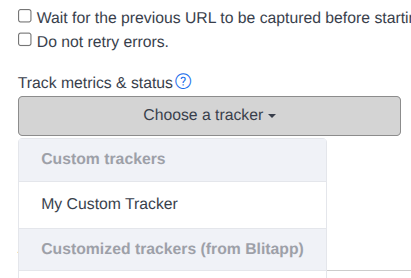
Use the tracker inside your capture.
Trackers must be added to your capture: