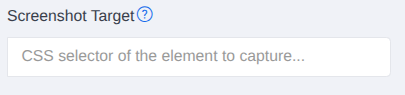
You can now capture just one element of a page instead of the whole screen. Set a Screenshot Target — a CSS selector — under Advanced Web Page Options, and Blitapp will crop the screenshot to that element.
How it works
Open a capture’s Advanced Web Page Options and fill in the new Screenshot Target field with a CSS selector, for example:
#pricing— capture the element with idpricing.hero— capture the first element with classherotable.report— capture a specific report table
Blitapp waits for the page to load, finds the element, and returns a screenshot of just that element. If the selector matches nothing, Blitapp falls back to a normal capture of the page or window, depending on your capture settings — so a missing element never breaks your schedule.
Why this matters
Targeting a single element is handy when you want to:
- monitor one widget — a price, a status badge, a chart — without the surrounding page
- crop out headers, navigation, and cookie banners automatically
- produce tighter images for emails, Slack, and dashboards
- track visual changes on a specific component over time
Tips
- Use the most specific selector you can. If several elements match, the first one is captured.
- Combine it with Hide elements to remove overlays, or Browser Wait / Maximum Wait to make sure the element has rendered before the capture.
- Pair it with Trackers to extract data from the same element you are capturing.
Learn more
See the help page for details: Screenshot Target.
As always, if you need a hand setting up a capture, reach out to us at support@blitapp.com.