The fastest way to learn custom trackers is to copy what Blitapp’s built-in trackers do. Each one is just a selector plus a JavaScript expression – both small enough to test in your browser before you ever save the tracker. This walkthrough takes you from the simplest built-in tracker (Page Title) to the most involved (Google Search Rank, which uses <input> to thread a target URL through the selector and value expression), with the DevTools steps to validate every example.
If you haven’t created a custom tracker before, the Create Your Own Custom Trackers post covers the form fields. This one is hands-on.
Why DevTools first
Blitapp evaluates your Value expression in the page exactly the way the browser console does. So if a one-liner returns the right value in DevTools, it will return the same value when the capture runs. If it throws there, it will throw at capture time too – and you’ll see null in your tracker history.
The workflow is the same for every tracker:
- Open the target page in Chrome, Firefox, or Safari.
- Open DevTools (F12, or Cmd+Opt+I on macOS, or right-click a page element and choose Inspect).
- Switch to the Console tab.
- Paste the value expression and press Enter.
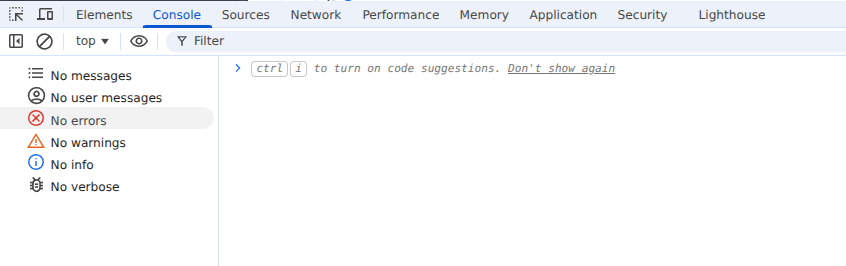
If the value matches what you want stored, you’re done – copy the same expression into the tracker form.
Example 1: Page Title (the simplest one)
Built-in Page Title just reads document.title. There’s no selector, no input – the value is always available the moment the page loads.
In DevTools console:
document.title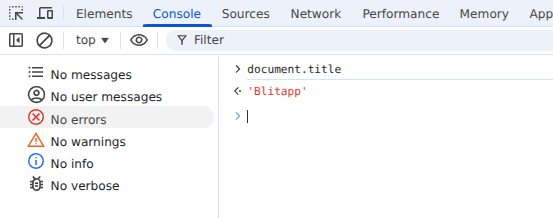
Tracker form:
- Display name:
Page Title - Selector: (leave empty)
- Value expression:
document.title - Value type:
string
Use this as a sanity check the first time you set up trackers: pick any URL, save the tracker, run the capture, and confirm the title shows up in your tracker history.
Example 2: Amazon Price (one CSS selector)
The built-in Amazon Price tracker grabs the headline price from any Amazon product page. The price lives inside a span.a-price. There can be several of them on the page, so the tracker takes the first one.
Test in DevTools on a product URL like https://www.amazon.com/dp/B08N5WRWNW:
document.querySelectorAll('span.a-price > .a-offscreen')[0].textContent
Tracker form:
- Display name:
Amazon Price - Selector:
span.a-price– Blitapp waits for this element before running the value expression - Value expression:
document.querySelectorAll('span.a-price > .a-offscreen')[0].textContent - Value type:
string
Two things to note:
- The Selector field tells Blitapp to wait until the element appears. On a JavaScript-heavy page (most modern sites) this is the difference between getting the price and getting
null. textContentincludes accessibility text, so the result looks like"$49.99". That’s fine for a string tracker. If you want a number-only chart, change the Value type tonumber.
Example 3: YouTube Views (fallback selectors)
YouTube’s DOM has changed over the years and the views counter has lived under two different selectors. The built-in tracker handles both with a comma-separated CSS selector list:
document.querySelectorAll('#formatted-snippet-text > span:nth-child(1), span.view-count')[0].textContentOpen any video page and try that in the console. Whichever variant the page is using, querySelectorAll returns the matching nodes from either selector and [0] picks the first one.
Tracker form:
- Display name:
YouTube Views - Value expression: the line above
- Value type:
number
This is the trick to use any time a site is mid-redesign or you’re not sure which class names will be live. List both. The first one that exists wins.
Example 4: Twitter Likes (attribute selectors)
When class names change on every deploy, attribute selectors are more durable. The built-in Twitter Likes tracker keys off the href of the link to the likes page rather than any class name:
document.querySelectorAll("a[href$='/likes']")[0].textContenta[href$='/likes'] reads as “an <a> whose href ends with /likes“. On a tweet page, that’s the link that takes you to the list of users who liked the tweet – and it conveniently displays the count.
Other useful attribute matchers when you write your own:
[href*='/foo']– href contains/foo[href^='https://']– href starts withhttps://[data-testid='like-button']– exact attribute match (very common on apps that usedata-testid)
Tracker form:
- Display name:
Twitter Likes - Value expression: the line above
- Value type:
number
Example 5: Google Search Rank with <input> (the most complex)
The built-in Google Search Rank tracker tells you where a given URL lands on a Google search results page. It’s the trickiest of the bunch because it does three things at once:
- Takes a per-capture input (a URL or part of one) and threads it through both the selector and the value expression.
- Pins down which result
<h3>blocks are the organic ones (Google peppers the page with featured snippets, sitelinks, “people also ask”, etc. – only organic results count toward rank). - Reads the current results page number and converts a position-on-page into a global rank.
The full value expression:
(function(){
  var className = document.querySelectorAll("a[href*='<input>'] > h3")[0].getAttribute('class').split(' ').join('.');
  var page = Array.from(document.querySelectorAll('td > span')).filter(x => x.parentNode.textContent != '').map(x => x.parentNode.textContent)[0] || 1;
  return Array.from(document.querySelectorAll(`a > h3.${className}`))
    .filter(function(x){ return x.offsetParent != null })
    .findIndex(function(x){ return x.parentNode.href.includes('<input>') }) + 1 + (page - 1) * 10;
})()
Three new pieces compared to the earlier examples:
<input>in two places. Earlier examples used<input>only once. Here it shows up in the Selector field (a[href*='<input>'], so Blitapp waits for at least one matching link to appear) and twice inside the value expression. Blitapp substitutes every occurrence with the per-capture input before running the expression.- Reading a class off a real result. Google’s organic-result
<h3>s share an auto-generated class name (something likeLC20lb) that the featured snippets and sidebar widgets don’t have. The first line grabs that class off the result whose href matches your input, then uses it to filter to organic results only on the next line. - The IIFE (
(function(){ ... })()) chains those steps together – declare a class, find the page number, find the index, do the math – and returns one number, which is what gets stored.
The math at the end – findIndex(...) + 1 + (page - 1) * 10 – turns a 0-based index on the current results page into a 1-based global rank, on the assumption that Google shows ten results per page.
Testing it in DevTools
Because Blitapp does the substitution server-side, you can’t paste this expression directly into your console while <input> is still there. To test:
- Pick a search and a target. For example, search Google for
screenshot apiand check whereblitapp.comranks. - Open the search results page in a fresh window (no extensions or sign-in skewing the layout).
- Open DevTools and replace each
<input>in the expression withblitapp.com. - Paste it into the console.
So the testable version is:
(function(){
  var className = document.querySelectorAll("a[href*='blitapp.com'] > h3")[0].getAttribute('class').split(' ').join('.');
  var page = Array.from(document.querySelectorAll('td > span')).filter(x => x.parentNode.textContent != '').map(x => x.parentNode.textContent)[0] || 1;
  return Array.from(document.querySelectorAll(`a > h3.${className}`))
    .filter(function(x){ return x.offsetParent != null })
    .findIndex(function(x){ return x.parentNode.href.includes('blitapp.com') }) + 1 + (page - 1) * 10;
})()
If you’re on page 1 and blitapp.com is the third organic result, that returns 3. If you’re on page 2 and it’s the second result, that returns 12. A return of 0 means the input URL wasn’t found on the current page – which is also useful information to chart over time.

Tracker form:
- Display name:
Google Search Rank - Requires input: checked
- Input label:
URL or part of URL - Selector:
a[href*='<input>']– so Blitapp waits for at least one matching result link before evaluating - Value expression: the IIFE shown above (with
<input>left in place) - Value type:
number
When you add this tracker to a capture for a Google search URL, Blitapp prompts you for the URL or fragment you want to track. The same tracker can power as many search-rank checks as you have searches scheduled – one capture per search term, each with its own input.
A few hard-won DevTools tips
$0is your friend. Click any element in the Elements panel, then type$0in the console – it’s a reference to the selected node. Great for quickly checking whattextContentorgetAttribute('href')returns without writing a selector.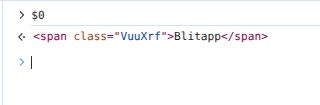
Right-click an element → Copy → Copy selector gets you a working selector in one step. It’s often noisy (e.g.
#main > div:nth-child(3) > ...); shorten it before saving.Test under the same conditions Blitapp uses. Captures default to a desktop viewport with no logged-in session. If a value only appears when logged in, your capture needs to log in first.
Watch for elements rendered late. If
document.querySelectorAll(...)returns nothing in DevTools right after the page loads but works after a couple of seconds, set the Selector field on the tracker so Blitapp waits for it. Otherwise the value expression evaluates too early and storesnull.Keep expressions defensive.
document.querySelectorAll('.foo')[0]?.textContent || ''returns an empty string when the element is missing, which is much easier to spot in tracker history than a thrown error.
Where to go from here
You can copy any of the examples above as a starting point and tweak the selector or expression. The full list of built-in trackers (Amazon Search Rank, Google Search Rank, YouTube Likes/Comments, Twitter Retweets/Quote Tweets, and more) lives in the tracker dropdown when you edit a capture – they’re all written in the same JavaScript-in-the-page style as the examples here, so peeking at one in your captures is often the quickest path to writing your own.
Happy tracking.