You can now define your own trackers in Blitapp and use them in any capture – no support request needed. Custom trackers are shared with everyone on your team automatically.
What is a tracker?
A tracker extracts a value from a page when a capture runs and stores it in your history. You can see how the value changes over time on the Trackers history page. Blitapp already ships with built-in trackers for Amazon, Google search rank, YouTube, X (Twitter), and more. Blitapp can create chart for these trackers.
Until today, adding a tracker for a page Blitapp didn’t support meant contacting us. Now you can create one yourself in a minute.
Creating a custom tracker
- Click Trackers in the left menu
- Click New Tracker
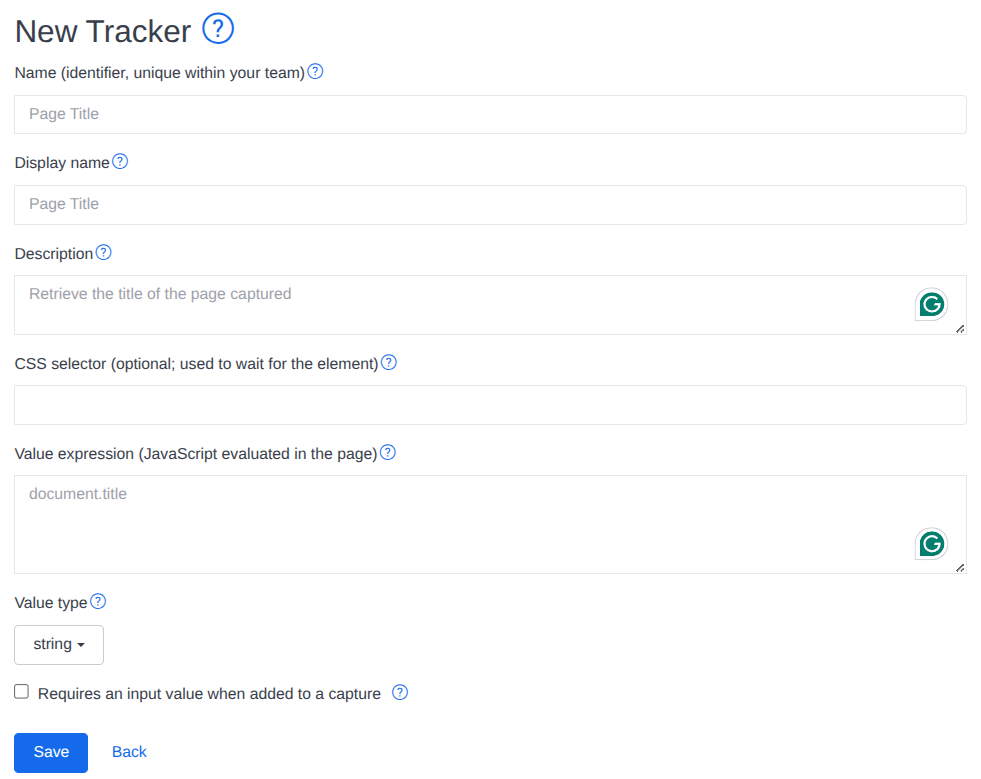
- Fill in the form
The fields
- Name – an internal identifier for the tracker. Must be unique within your team.
- Display name – the label that shows up in the tracker picker and in your history.
- Description – optional notes for your teammates.
- CSS or XPath selector – optional. Blitapp waits for this element to appear on the page before extracting the value.
- Value expression – a JavaScript expression evaluated in the page. Its result is what gets stored. This is the most important field.
- Value type –
stringornumber. Numeric values are plotted on the history chart. - Requires input – check this if the tracker needs a per-capture input (e.g. a product ID or search term). You can then reference
<input>in your selector or value expression. - Input label – shown next to the tracker when it’s added to a capture.
Example: tracking the price on a product page
Say you want to track the headline price on a product page that displays it inside <span class="product-price">$49.99</span>:
- Name:
my_product_price - Display name:
My Product Price - Selector:
span.product-price - Value expression:
document.querySelector('span.product-price').textContent - Value type:
number
The value expression strips the currency symbol so the result is a clean number that can be charted.
Example: tracking a value that depends on an input
If the same tracker should work across many pages and needs a parameter – say the CSS selector to pull the value from – check Requires input and use <input> as a placeholder:
- Value expression:
document.querySelector('<input>').textContent.trim() - Input label:
Element selector
When you add this tracker to a capture, you’ll be prompted to enter the selector for that particular URL.
Using your custom tracker
Open or create a capture. The tracker dropdown now has two groups:
- Built-in trackers (from Blitapp)
- Custom trackers
Your new tracker shows up in the second group. Select it, supply an input if required, and save. From the next run onward, your tracker runs on every capture and its value appears in the Trackers history page.
Team sharing and permissions
Custom trackers are team-wide by default – every team member sees them in the picker and can use them. Only the creator can edit or delete a tracker. Teammates with the ModifyAll role can edit or delete trackers created by others (useful for team admins maintaining a shared library).
You can manage roles from the Team page.
Tips
- Iterate in the browser first. Open the target page in your browser, open DevTools, and paste your value expression in the console. If it returns what you expect, drop it into the tracker form.
- Prefer stable selectors. Class names generated by modern build tools (
css-1a2b3c) change between deploys. Look fordata-attributes, semantic tags, or ARIA labels instead. - Wait for the element. If the value you want is rendered by JavaScript after page load, set the Selector field so Blitapp waits for it before evaluating the value expression.
- Numeric cleanup. If the value has currency symbols, commas, or units, strip them inside the expression (as in the price example) so the chart treats it as a number.
Happy tracking.