Want to track Amazon prices, monitor search rankings, or record weather data over time — all in a spreadsheet that updates itself? With the new Google Spreadsheet App, Blitapp can append a row of data to your Google Sheet every time a capture runs.
Why log website data to a spreadsheet?
Many websites display information that changes throughout the day: product prices, stock levels, search positions, weather conditions, review counts. If you need a historical record of these values, manually copying them into a spreadsheet is tedious and easy to forget.
With Blitapp, you set it up once. Every time your scheduled capture runs — whether that’s twice a day or every hour — a new row is added to your spreadsheet with the timestamp, the page URL, and whatever data points you’re tracking.
Here are a few things you can build:
- Price history: track an Amazon product price daily and chart the trend over weeks
- SEO monitoring: record your Google Search rank for a keyword every morning
- Weather logging: capture temperature, humidity, and wind speed from a forecast page
- Social metrics: log YouTube views, likes, or comment counts at regular intervals
- Competitor watch: monitor review scores or ratings on Google Maps
How it works
Blitapp trackers extract specific data points from a web page — a price, a number, a piece of text. The Google Spreadsheet App takes those tracker values and writes them into matching columns in your sheet.
The matching is automatic: if your spreadsheet has a column called “Temperature” and your capture uses a tracker named “Temperature”, the value lands in the right column. No manual mapping or configuration needed.
Built-in columns are also available:
- Date — when the capture ran
- URL — the address of the page that was captured
- Screenshot — a link to the screenshot image
- Status — whether the capture succeeded or failed
Setting it up
1. Prepare your spreadsheet
Create a Google Sheet and add column headers in the first row. Use the built-in column names and tracker names that match your capture. Here is an example for tracking an Amazon product:
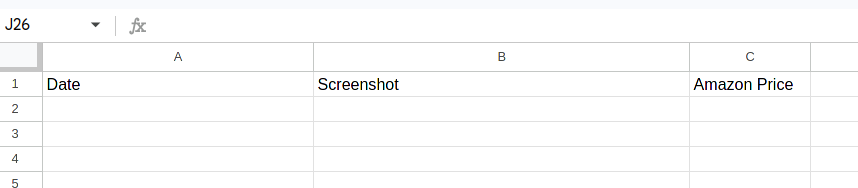
The “Amazon Price” column matches the tracker assigned to the capture. You can add as many tracker columns as you need.
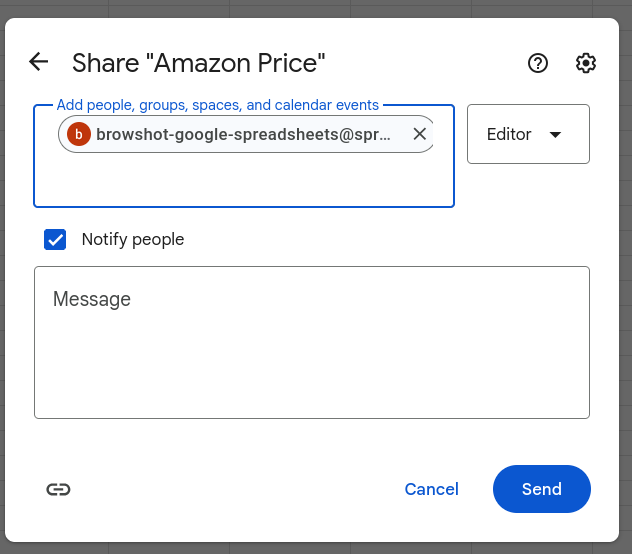
2. Share with Blitapp
Grant Editor access to browshot-google-spreadsheets@spreadsheet-302000.iam.gserviceaccount.com so Blitapp can write to your sheet.
3. Create the App in Blitapp
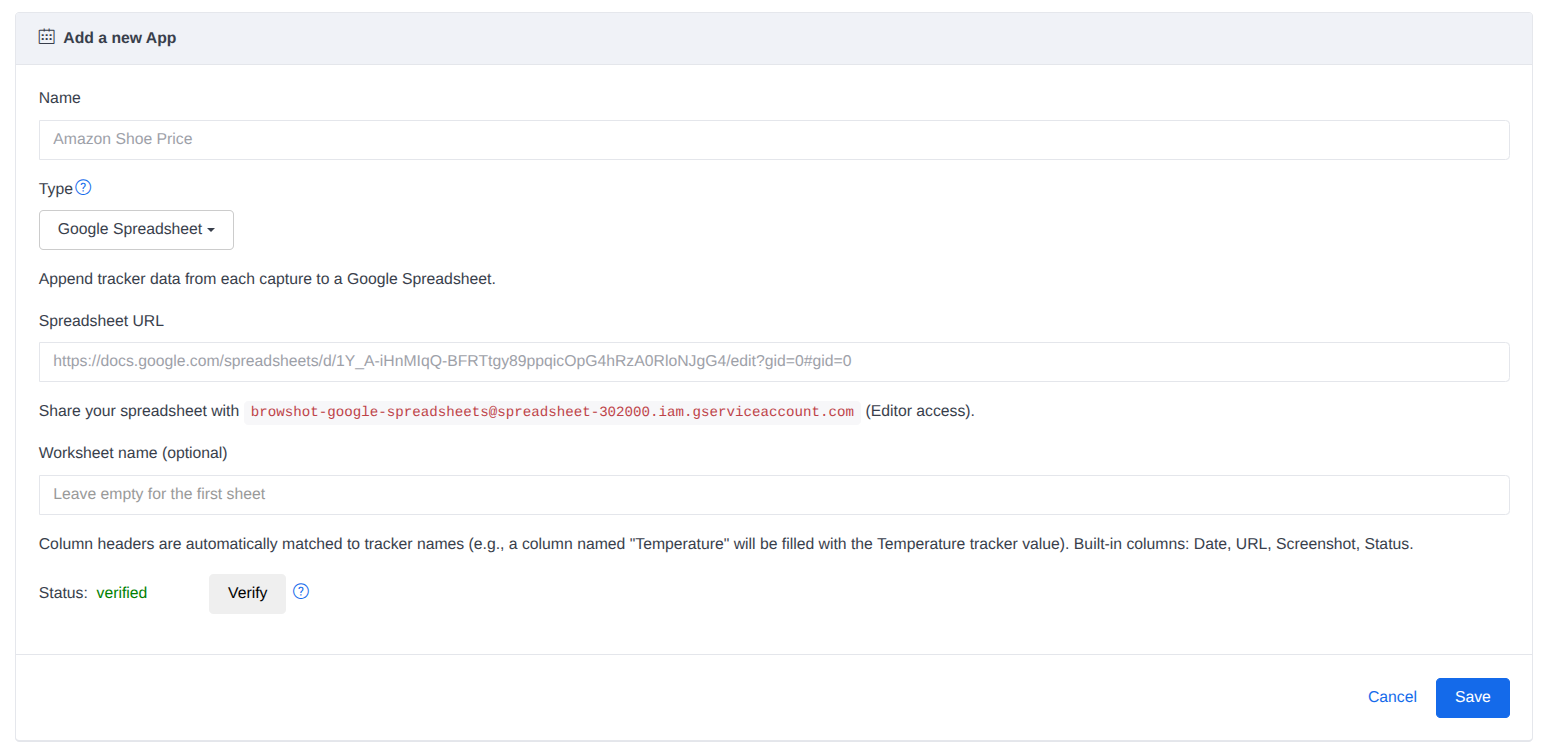
Go to Apps, select Google Spreadsheet, paste the spreadsheet URL, and click Verify to confirm access.
4. Assign it to your capture
Add the Google Spreadsheet App and the relevant trackers to your capture. Set a schedule — every hour, twice a day, whatever fits your use case.
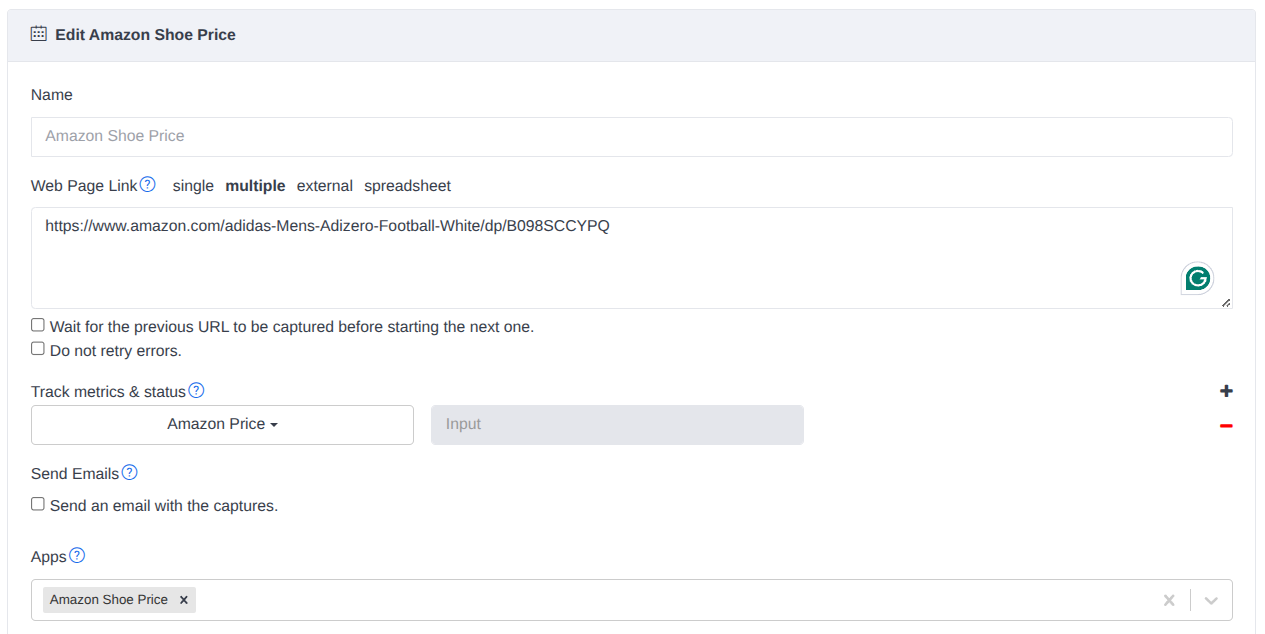
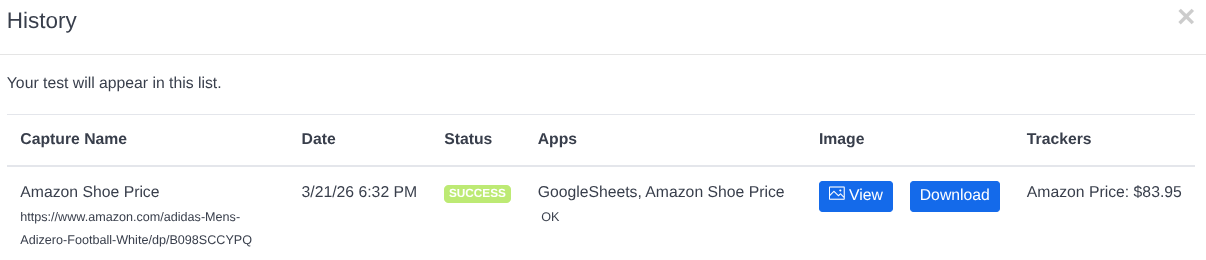
Hit Save & Test to run it immediately. You’ll see the tracker data in your capture history:
And your spreadsheet now has a new row with all the data:

Every time the capture runs, another row is appended. Over days and weeks, you build a complete dataset — ready to chart, analyze, or export.
Get started
Sign up for a free trial and try it out. If you need a custom tracker for a specific page, reach out to us at support@blitapp.com — we’re happy to help.
For the full technical details, see the Google Spreadsheet App support page. To learn more about trackers, check out the tracker documentation.